
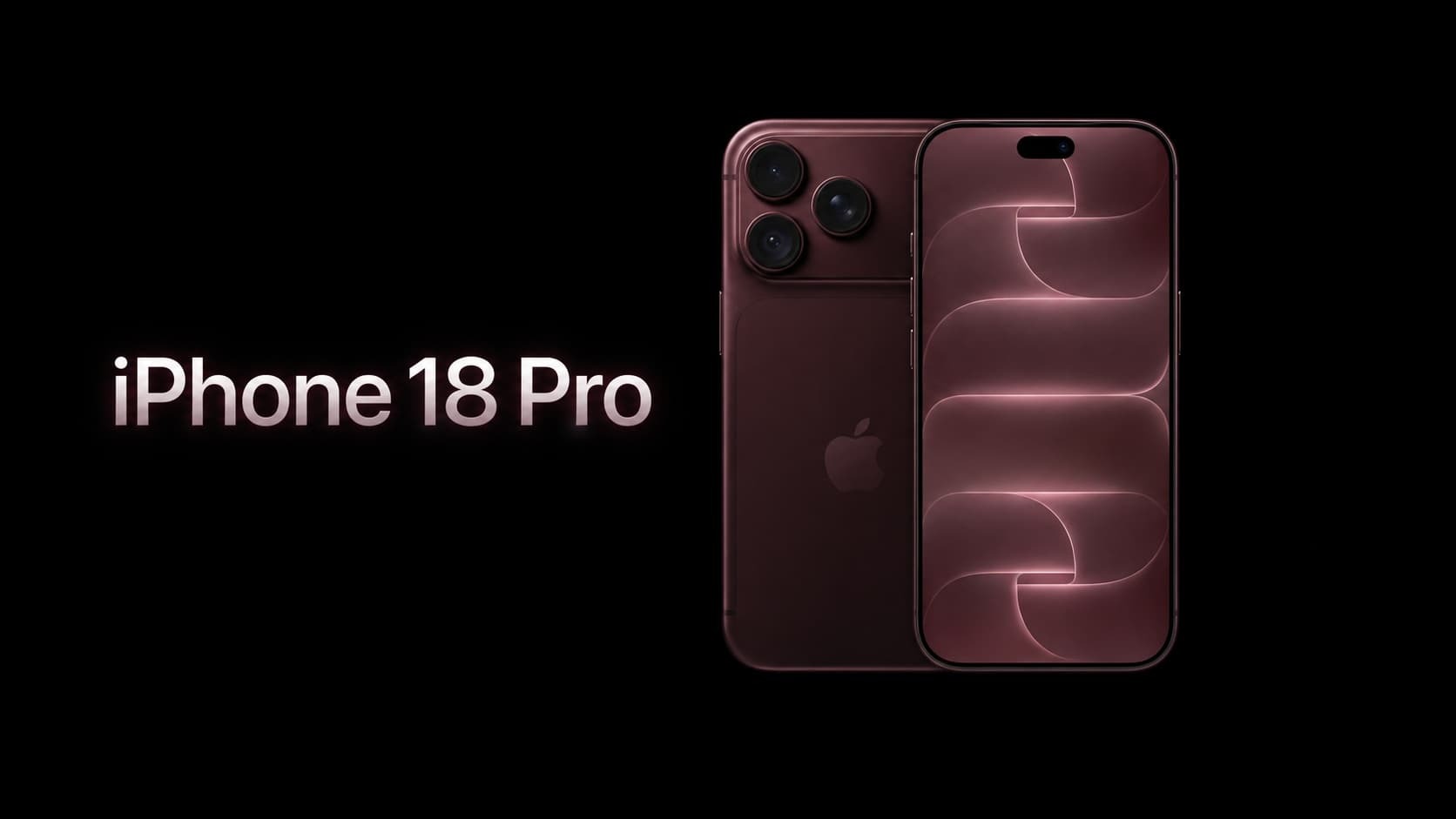
iPhone 18 Pro eSIM Guide: SIM Card, Setup and Travel
The iPhone 18 Pro and iPhone 18 Pro Max support eSIM, but the type of SIM you can use depends on where the phone was sold. US models have no physical SIM slot. UK models support a nano-SIM and an eSIM, as well as two eSIMs. Both can use a travel eSIM, provided the phone is unlocked for use with another carrier.
That regional difference matters when you upgrade, buy an imported iPhone or prepare for an international trip. This guide explains how to move your existing number, add a separate travel plan and make sure the correct line provides mobile data abroad.
Does the iPhone 18 Pro Have a Physical SIM Slot?
It depends on the model’s sales region. Apple lists the US versions of the iPhone 18 Pro and Pro Max as eSIM-only: they cannot use a physical SIM card. The UK technical specifications list support for a nano-SIM and eSIM, plus dual eSIM.
If you are buying an iPhone abroad or from a reseller, check the specifications for that particular model before assuming your existing plastic SIM will fit. This is especially useful if your home carrier does not yet support eSIM or requires you to visit a store to convert your line.
A physical SIM slot and carrier lock are separate questions. A phone can support eSIM but still be restricted to one carrier. Before purchasing a travel eSIM, open Settings → General → About and look for Carrier Lock. Apple says an unlocked iPhone displays “No SIM Restrictions.” If it shows a restriction, contact the carrier that locked the phone.
How Many eSIMs Can the iPhone 18 Pro Use?
The iPhone 18 Pro and Pro Max can have two eSIM lines active at the same time. Apple’s US specifications also state that the phones can store eight or more eSIMs.
“Stored” and “active” mean different things. You can keep multiple eSIM profiles on the device for different trips, but only two eSIM lines can be active simultaneously. For example, you could keep your regular number active for calls and verification texts while using a travel eSIM for mobile data.
Your iPhone uses one cellular data network at a time. You choose which line supplies that data in Settings → Cellular → Cellular Data. Depending on your region, the menu may say Mobile Data instead of Cellular.
How Do You Transfer Your Number to an iPhone 18 Pro?
Your existing phone number belongs to your mobile carrier’s plan. Buying a travel eSIM does not transfer that number. If you are replacing an older iPhone, move your regular line through your carrier’s supported process first.
Apple’s eSIM Quick Transfer can move an eligible number from your previous iPhone without a separate carrier call, but your carrier must support the feature. With some carriers, it can also convert a physical SIM in your old phone into an eSIM on the new one.
To transfer a supported line after setting up your new phone:
- Keep both iPhones nearby, turn on Bluetooth and connect the new phone to Wi-Fi or a hotspot.
- Sign in to the same Apple Account on both devices and unlock the previous iPhone.
- On the iPhone 18 Pro, open Settings → Cellular → Set Up Cellular or Add eSIM.
- Select the number offered for transfer, or tap Transfer From Nearby iPhone.
- Confirm the transfer on your previous iPhone and follow the onscreen instructions.
- Wait until the line activates on the new phone before relying on it for calls or texts.
When the transferred plan activates on the new iPhone, the previous SIM is deactivated. Apple’s eSIM setup instructions explain the requirements and other activation methods. If Quick Transfer is unavailable, ask your home carrier how it issues an eSIM for a new device.
Keep your regular carrier transfer separate from your travel eSIM setup. A travel provider may use its own app, installation link or QR code, and its rules for moving an eSIM to another device may differ from your home carrier’s rules.
How Do You Install a Travel eSIM on an iPhone 18 Pro?
First, choose a plan that covers every country you will visit and check its data allowance, validity period and activation instructions. If your itinerary crosses several countries, confirm the precise country list of a regional plan before purchasing.
Then install the eSIM while you have a reliable internet connection. If your provider sends a QR code, Apple supports these installation methods:
- QR code on another screen or printed page: Open the iPhone Camera, scan the code and follow the Cellular Plan Detected prompt.
- QR code in an email or browser on the same iPhone: Touch and hold the QR code, then tap Add eSIM if that option appears.
- Provider app or installation link: Follow the instructions supplied with your plan.
Label the new line Travel so that you can distinguish it from your regular number. Installing an eSIM before departure does not mean every plan immediately starts its validity period; check your specific plan’s activation terms before installing or turning it on.
If you need a plan for an upcoming trip, you can compare VIA eSIM destinations and select one that matches your route. A travel data plan gives you mobile internet according to its terms; do not assume it includes a new phone number, conventional calls or SMS.
Which SIM Should Use Mobile Data Abroad?
Once you arrive, select the travel eSIM as your mobile data line. Check these settings rather than assuming the iPhone has chosen the right connection:
- Open Settings → Cellular or Mobile Data and make sure the travel eSIM is turned on.
- Open Cellular Data and select the Travel line.
- Turn Allow Cellular Data Switching off if you want to prevent the phone from falling back to your home line for data.
- Keep Data Roaming off on your home line.
- Turn Data Roaming on for the travel eSIM if your plan’s instructions require it.
Many travel eSIMs connect through partner networks and need Data Roaming enabled on the travel line. That setting does not, by itself, mean your prepaid travel plan will add a separate roaming charge. The important distinction is which line is roaming and what your chosen plan covers. Our guide to data roaming settings for travel eSIMs explains this in more detail.
You may leave your home line active if you need your usual number for calls or verification messages. However, turning off its data roaming does not eliminate every possible home-carrier charge. Calls, texts and other services on that line may still be billed under your carrier’s international terms. If you do not need the home line during the trip, you can turn it off in your SIM settings.
On newer versions of iOS, the iPhone may also show a “Turn On Travel eSIM” prompt when you arrive. If it does, review whether you are selecting Travel eSIM Only or Travel eSIM and Current eSIM, then check the line settings afterward.
What Should You Check Before Leaving and After Landing?
A few checks can prevent the most common airport connection problems.
Before departure:
- Confirm that Carrier Lock says “No SIM Restrictions.”
- Make sure your home number works on the new iPhone if you recently transferred it.
- Check that the travel plan includes your destination, required data amount and travel dates.
- Install the travel eSIM using reliable Wi-Fi, following the provider’s timing instructions.
- Keep the purchase confirmation and activation instructions accessible offline.
After landing:
- Turn off Airplane Mode and enable the travel line.
- Select the travel eSIM for mobile data and review roaming and data-switching settings.
- Briefly turn off Wi-Fi and load a webpage or map. This tests the cellular connection rather than airport Wi-Fi.
- If you are keeping your home line active, review your carrier’s charges before placing or answering traditional calls.
This test is particularly useful on an eSIM-only US model: a physical SIM card cannot serve as an emergency fallback in that phone. An unlocked device and a working eSIM plan should be arranged before you need connectivity.
Why Is the iPhone 18 Pro eSIM Installed but Not Working?
An eSIM profile can appear on your phone even when it is not yet providing usable data. Work through these checks in order:
- Confirm the plan covers your location. Check its supported countries, validity and remaining data.
- Check the active line. In Cellular settings, make sure the travel eSIM is turned on and selected under Cellular Data.
- Review Data Roaming. Enable it on the travel line if the provider requires it, while keeping it off on the home line.
- Check the carrier lock. A phone locked to another carrier may not accept the travel service.
- Reconnect to the network. Turn Airplane Mode on and off, then restart the iPhone if needed.
- Check the installation status. If activation has not completed, connect to Wi-Fi and follow the provider’s instructions.
Apple’s eSIM troubleshooting guidance also recommends checking whether the line appears in Cellular settings and whether a carrier settings update is available.
Do not delete the travel eSIM as your first troubleshooting step. If the same activation code cannot be reused, you may need the provider’s help to install it again. Contact support with the error message and your order information if the checks above do not resolve the issue.
Frequently Asked Questions
Does every iPhone 18 Pro use eSIM only?
No. Apple lists the US iPhone 18 Pro and Pro Max as eSIM-only, while its UK specifications list nano-SIM and eSIM support. Check the exact model and sales region when purchasing an imported phone.
Can a US iPhone 18 Pro use a travel eSIM overseas?
Yes, provided it is unlocked and the chosen provider supports your destination and device. Because the US model has no physical SIM slot, it cannot use a local plastic SIM card as an alternative. Your mobile carrier can confirm any restrictions on your particular phone.
Can I keep my regular number and use a travel eSIM?
Yes. You can keep your home line active and assign mobile data to the travel eSIM. Your usual number remains with your home carrier. Check that carrier’s rules for calls and texts abroad, since a travel data eSIM does not automatically prevent charges on the home line.
Does a travel eSIM replace my existing phone number?
A data-only travel eSIM generally adds a separate data line; it does not move or replace your home number. Transferring your regular number to a new iPhone is a separate process handled by your home carrier.
Do I need Wi-Fi to install an eSIM?
You should have access to Wi-Fi or another reliable internet connection when setting up the new iPhone and downloading an eSIM. Apple notes that some eSIM-only models can activate without Wi-Fi in certain countries or regions, but arranging a connection before departure is the safer practical choice.
Should Data Roaming be on for my iPhone 18 Pro travel eSIM?
Follow the instructions for your specific plan. Many travel eSIMs need Data Roaming on for the travel line to connect to partner networks. Keep it off for the home line if you do not want that line to use roaming data, and select the travel eSIM under Cellular Data.
The Takeaway
The iPhone 18 Pro and Pro Max are ready for eSIM travel, but your setup depends on the phone’s sales region, carrier lock and mobile plan. Check whether your model has a SIM slot, transfer your home number through your carrier, and install a separate travel eSIM according to its provider’s instructions. At your destination, verify that the travel line—not your home line—is supplying mobile data.
If you are preparing a trip, explore VIA eSIM’s destination plans and check the coverage and validity of the specific plan before you leave.