
Should Data Roaming Be On or Off When Using an eSIM?
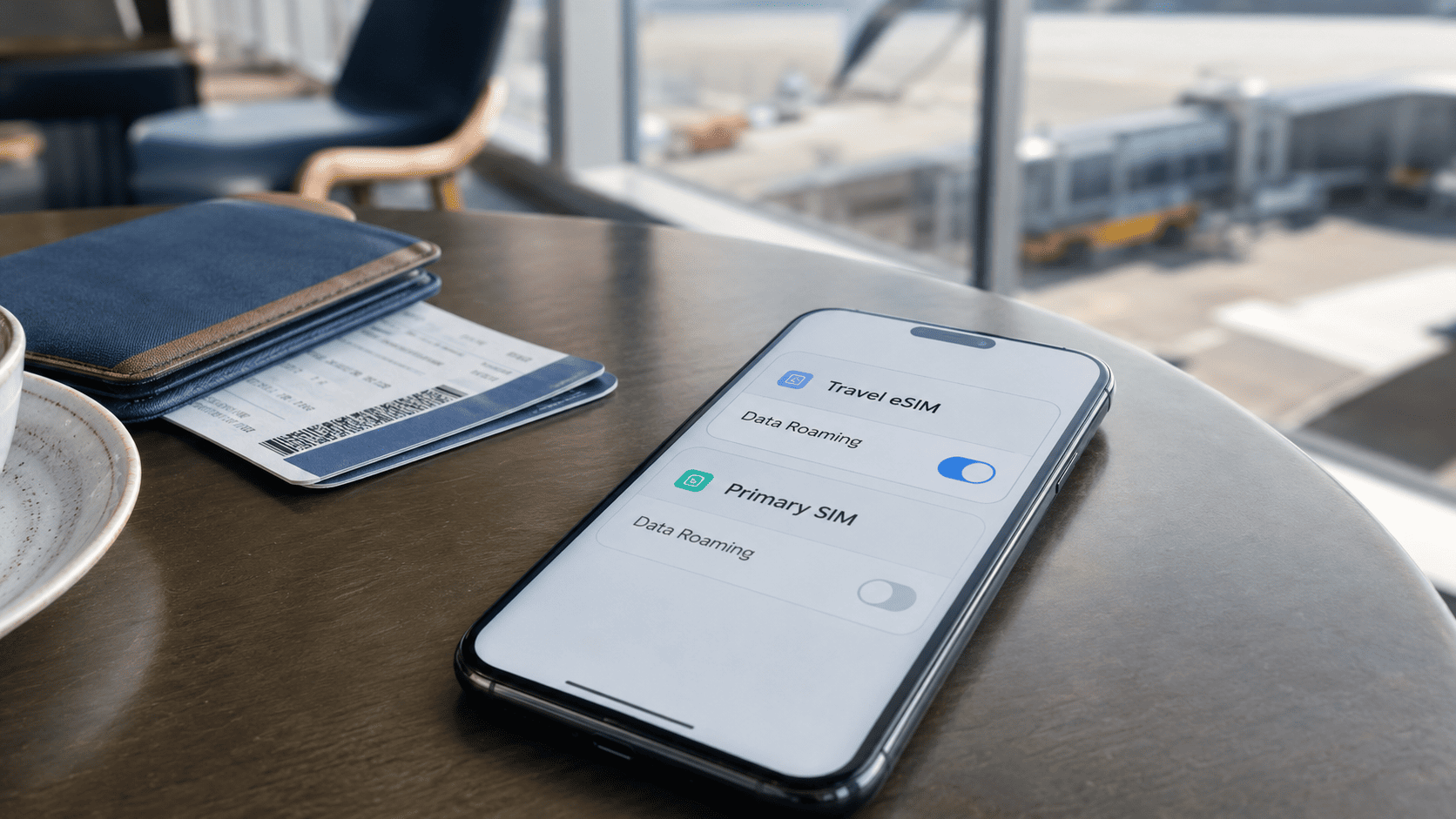
With most travel eSIMs, Data Roaming should be ON for the travel eSIM and OFF for your primary or home SIM. Select the travel eSIM as your mobile data line and disable automatic data switching. This allows the eSIM to connect to supported partner networks while preventing your home SIM from using expensive roaming data.
You can keep your home SIM active if you need to receive calls, texts or verification codes. However, your carrier may still charge for certain calls and messages. Turning off data roaming prevents mobile data usage on that line, but it does not automatically prevent every possible voice or SMS charge.
What Settings Should You Use With a Travel eSIM?
Set the travel eSIM as the only line used for mobile data. For most travel eSIMs, Data Roaming must be turned on so the plan can connect to supported networks at your destination.
On your primary or home SIM, keep Data Roaming turned off. You should also disable automatic data switching so your phone cannot switch back to the home SIM if the travel eSIM temporarily loses its connection.
If you still need your regular number for calls, SMS or verification codes, you can leave the home SIM active without using it for mobile data. If you do not need your regular number during the trip, turning the home SIM off completely provides the strongest protection against unexpected carrier charges.
Why Does a Travel eSIM Need Data Roaming?
Many travel eSIMs connect through agreements with local mobile networks. Although the data package is prepaid, your phone may recognize the supported local carrier as a network outside the eSIM’s home network. That is why the connection is labelled as roaming.
Turning on Data Roaming gives the travel eSIM permission to use that partner network. If the setting is turned off, the eSIM may appear installed and active while mobile data still fails to work. Data Roaming should therefore be enabled on the travel eSIM line, not on your primary SIM.
In this situation, the word “roaming” does not automatically mean an additional charge. It describes how the travel eSIM connects to a supported network. Your data is taken from the package you purchased, provided you are using it within the destination and validity period covered by the plan.
The way these connections work can vary between local, regional and global eSIM plans, so you should always follow the activation instructions provided with your specific plan.
Can Turning On Data Roaming for an eSIM Cause Extra Charges?
Usually, turning on Data Roaming for a prepaid travel eSIM does not create an additional roaming fee. The setting simply allows the eSIM to connect to its supported partner networks, while your mobile data continues to come from the package you have already purchased.
Unexpected charges are more likely to come from your primary SIM. This can happen if the home SIM is still allowed to use mobile data, if automatic data switching is enabled, or if you use that line for calls and SMS while abroad.
Turning off Data Roaming on the home SIM helps prevent mobile data charges, but it does not block every possible carrier fee. Traditional calls and messages may still be charged according to your home carrier’s international roaming policy.
If you want to keep your regular number active, check your carrier’s charges before travelling. Otherwise, switching the primary SIM off completely is the safest option for avoiding unexpected fees.
How to Set Up Data Roaming on an iPhone
The setup process depends on which version of iOS your iPhone is using. iOS 26 may display a dedicated travel eSIM setup when you arrive, while earlier versions require you to configure the two lines manually.
If you are unsure which version you have, open Settings, select General, tap About and check “iOS Version.”
How to Turn On Data Roaming on iOS 26
If you installed the travel eSIM before departure, your iPhone may display a “Turn On Travel eSIM” notification when you arrive at your destination.
Tap the notification and choose “Travel eSIM Only” if you do not need your regular number during the trip. Choose “Travel eSIM and Current eSIM” if you want to keep your primary line available for calls, SMS or verification codes.
After completing the setup, open Settings and select Cellular or Mobile Data. Confirm that the travel eSIM is active and selected as the line used for mobile data. Open its “Cellular Data Options” and make sure Data Roaming is turned on.
Next, select your primary SIM and confirm that Data Roaming is turned off. Return to “Cellular Data” and disable “Allow Cellular Data Switching” so the iPhone cannot switch back to your primary line.
How to Turn On Data Roaming on Earlier iOS Versions
Earlier iOS versions, including iOS 18 and below, do not provide the same automatic travel eSIM setup. You will need to configure the connection manually.
Open Settings and select Cellular or Mobile Data. Under the list of available SIMs, select the travel eSIM and make sure “Turn On This Line” is enabled.
Open “Cellular Data Options” and turn on Data Roaming for the travel eSIM. Return to the main Cellular menu, select “Cellular Data” and choose the travel eSIM as the line used for internet access.
Turn off “Allow Cellular Data Switching,” then open the settings for your primary SIM and make sure Data Roaming is disabled on that line.
After arriving at your destination, turn off Wi-Fi briefly and open a website or map application. If it loads, your iPhone is using the travel eSIM successfully. If it does not connect, confirm that the travel eSIM is active, selected for mobile data and has Data Roaming turned on.
How to Set Up Data Roaming on Android
On an Android phone, activate the travel eSIM, select it for mobile data and turn on Data Roaming. Automatic data switching should remain off so the phone cannot use your primary SIM when the travel eSIM temporarily loses its connection.
The exact menu names vary depending on the phone manufacturer, Android version and mobile carrier.
How to Turn On Data Roaming on a Samsung Galaxy
Open Settings, select Connections and tap SIM Manager. Make sure the travel eSIM is enabled, then select it as the preferred or primary SIM for mobile data.
If “Data Switching” or “Data Switching and Backup Calling” appears in the SIM Manager, turn it off. This prevents the phone from automatically using your primary SIM for data.
Return to Connections, tap Mobile Networks and turn on “Data Roaming” or “Data Roaming Access.”
Some Galaxy phones do not display a separate roaming switch for each SIM. In that case, select the travel eSIM for mobile data and disable data switching before turning on Data Roaming.
If your phone provides separate roaming controls, keep Data Roaming turned off for the primary SIM. You can also disable the primary SIM completely in SIM Manager if you do not need calls, SMS or verification codes during your trip.
How to Turn On Data Roaming on a Google Pixel
Open Settings, select Network & Internet and tap SIMs. Choose the travel eSIM and make sure “Use SIM” is turned on.
Turn on “Mobile Data” and “Roaming” for the travel eSIM. Return to the SIMs menu and select the travel eSIM as the default SIM for mobile data.
Turn off “Automatic Data Switching.” Next, open the settings for your primary SIM and make sure Roaming is disabled. If you do not need your regular number, you can turn off “Use SIM” for that line.
On other Android phones, these controls may appear under “Mobile Network,” “SIM Cards,” “SIM Management” or “Cellular Network.” The same setup still applies: use the travel eSIM for mobile data, enable roaming for that eSIM and prevent the phone from switching to the primary SIM automatically.
After completing the setup, turn off Wi-Fi briefly and open a website or map application to confirm that the travel eSIM is providing the connection.
How to Avoid Unexpected Roaming Charges When Using an eSIM
The safest approach is to use the travel eSIM as the only line permitted to access mobile data. Before connecting abroad, check the following settings:
- Select the travel eSIM as your mobile data line.
- Turn on Data Roaming for the travel eSIM.
- Keep Data Roaming turned off for your primary SIM.
- Disable “Allow Cellular Data Switching,” “Automatic Data Switching” or any similar backup data option.
- Turn off the primary SIM completely if you do not need your regular number.
Be careful when making or answering traditional calls through your primary SIM. Even when mobile data roaming is disabled, your home carrier may still charge for calls and SMS while you are abroad.
After arriving, temporarily turn off Wi-Fi and test the connection. You can also check the mobile data usage for each SIM to confirm that the travel eSIM (not your primary line) is using mobile data.
What If the eSIM Does Not Work With Data Roaming On?
If Data Roaming is already turned on but the eSIM has no internet connection, first confirm that the travel eSIM is active and selected as the mobile data line. Then check the following:
- Make sure the plan covers your current destination and has not expired or run out of data.
- Turn Airplane Mode on for approximately 30 seconds, then turn it off and wait for the phone to reconnect.
- Restart the phone if the connection does not appear.
- Check that network selection is set to automatic. Select a specific network manually only if your eSIM provider’s instructions require it.
- Verify the APN settings if your activation instructions include a specific APN.
- Confirm that automatic data switching remains disabled and that your primary SIM has not been selected for mobile data.
If the eSIM was not activated correctly, follow the steps in our iPhone and Android eSIM activation guide.
Do not delete the eSIM as your first troubleshooting step. Some eSIM profiles cannot be downloaded again with the same activation code. Contact the provider’s support team before removing the profile from your phone.
Frequently Asked Questions
Should Data Roaming Be On or Off When Using an eSIM?
For most travel eSIMs, Data Roaming should be turned on for the travel eSIM and turned off for your primary SIM. The travel eSIM should also be selected for mobile data, with automatic data switching disabled.
Do All eSIMs Require Data Roaming?
No. Many travel eSIMs require Data Roaming because they connect through partner networks, while some local or carrier-issued eSIMs may not. Always follow the activation instructions provided with your specific plan.
What Happens If Data Roaming Is Off on a Travel eSIM?
The eSIM may remain installed and show a network signal, but mobile data may not work. You can still connect to Wi-Fi because the Data Roaming setting affects only cellular data.
Is Mobile Data the Same as Data Roaming?
No. Mobile Data allows your phone to use a cellular internet connection, while Data Roaming allows that connection to work through networks outside the SIM’s home network. A travel eSIM may require both settings to be turned on.
Can I Keep My Primary SIM Active While Using a Travel eSIM?
Yes. You can keep your primary SIM active for calls, SMS and verification codes while using the travel eSIM for mobile data. Keep Data Roaming off for the primary SIM and remember that your home carrier may still charge for certain calls or messages abroad.
The Bottom Line: Should Data Roaming Be On or Off?
With most travel eSIMs, Data Roaming should be on for the travel eSIM and off for your primary SIM. Select the travel eSIM as your mobile data line and disable automatic data switching to prevent your phone from using the wrong connection.
Turning on Data Roaming for a prepaid travel eSIM does not normally create an additional roaming fee. The main risk comes from allowing your primary SIM to use data, calls or SMS while abroad.
Before travelling, choose a VIA eSIM plan that covers your destination, install it while you have a stable internet connection and apply the settings above when you arrive.