
Saily eSIM Not Working? Fix Activation and No Internet Issues
You have installed your Saily eSIM, arrived at your destination and turned on your phone, but your maps and messages still will not load. Where should you start?
The right fix depends on whether the eSIM failed to install, cannot connect to a network or shows signal without internet access. This guide walks through each situation, including the settings to check on iPhone and Android.
This guide is published by VIA eSIM, a separate eSIM provider, and uses Saily’s public support documentation. VIA eSIM cannot access Saily accounts or handle Saily purchases.
First, Identify What Is Not Working
Check your phone’s SIM settings and the Saily app before making changes.
- The eSIM is missing from your phone: Start with the installation checks below.
- The eSIM is installed but shows No Service: Check activation, your selected data line and network connection.
- You have signal but no internet: Check your remaining data, roaming configuration and APN.
- Internet works on your phone but not another device: Go to the hotspot section.
Keep access to Wi-Fi while checking the app or contacting support. When testing whether Saily’s mobile data works, temporarily disconnect from Wi-Fi so you can tell which connection is being used.
Check Your Plan, Destination and Remaining Data
Open the Saily app and check the plan associated with your eSIM. Confirm that it covers the country you are currently in, has activated and has data remaining.
An eSIM appearing in your phone’s settings does not necessarily mean you have a usable data package. An expired plan or an exhausted allowance can leave the profile installed while internet access stops. Saily includes these checks in its connection troubleshooting guide.
Pay particular attention after crossing a border. A plan purchased for one country may not cover the next country on your itinerary.
If you have installed the eSIM before departure, check the activation conditions shown in the app. Saily describes its travel plans as activating automatically upon arrival at the covered destination, provided the required setup is complete. Saily’s activation instructions explain the preparation steps.
Select Saily as Your Mobile Data SIM
Your phone can have the Saily profile installed while continuing to use a different SIM for mobile data. Check both whether the line is enabled and which line supplies your internet connection.
On iPhone
Open Settings → Cellular, sometimes labelled Mobile Service or Mobile Data.
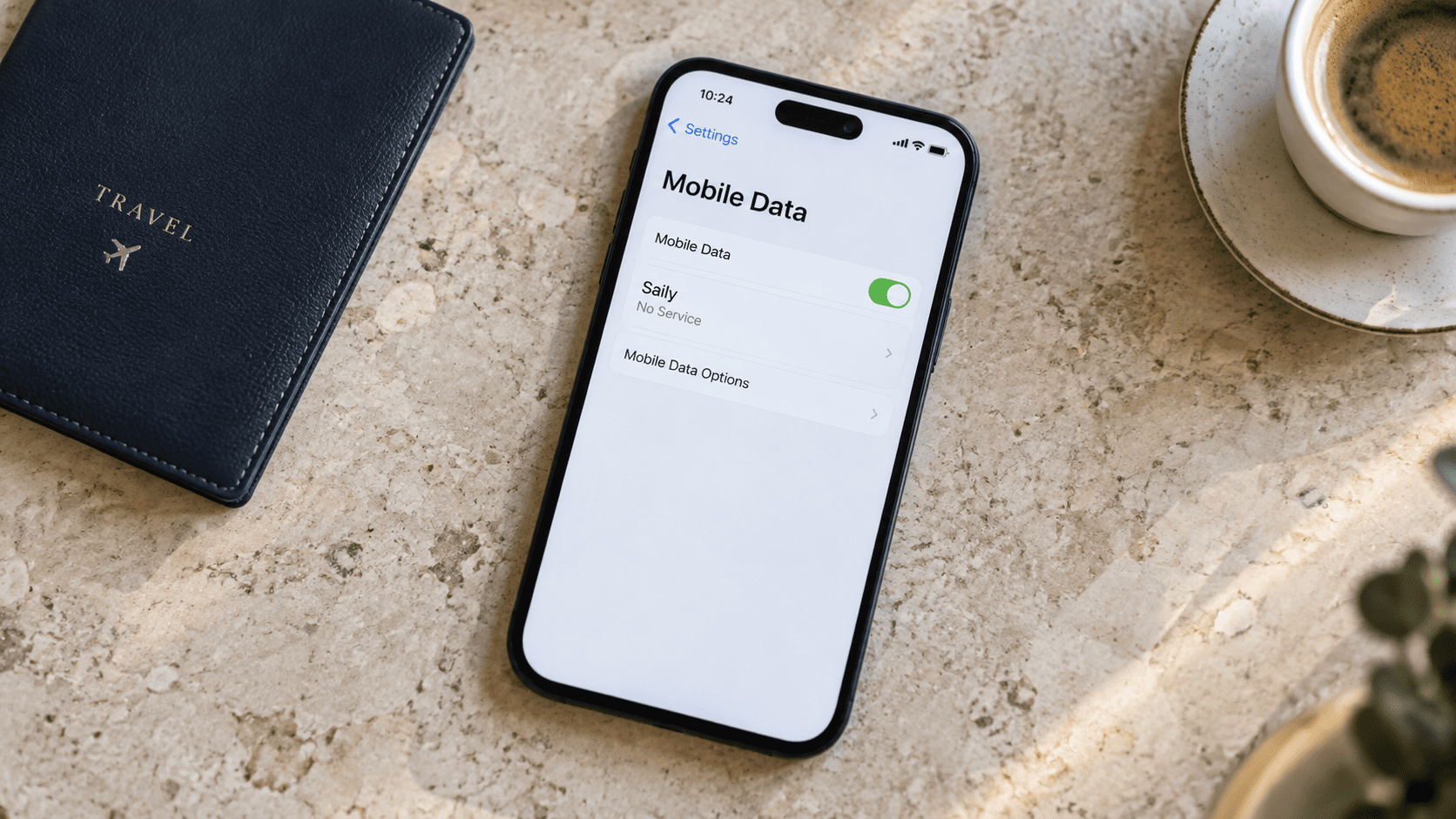
Select the Saily line and enable Turn On This Line. Return to the mobile data settings and choose Saily as the data SIM. These are separate settings: enabling the line alone does not select it for internet access. Saily’s iPhone instructions show both checks.
Turn off automatic mobile data switching while troubleshooting. Saily recommends this to prevent your phone from switching to your primary line. See Saily’s setup guidance.
On Samsung and Other Android Phones
On Samsung, open Settings → Connections → SIM manager. Enable Saily and select it under the mobile data preference. Menu names vary between Android manufacturers. Saily’s Android guide uses this menu structure.
On Google Pixel, open Settings → Network & internet → SIMs, select Saily and check that the SIM and mobile data are enabled. Saily provides separate Pixel instructions.
Check the Data Roaming Setting
Saily’s Help Center recommends enabling Data Roaming for the Saily connection. On Android, this is usually found under Mobile networks or the selected SIM’s settings. Select Saily for mobile data before checking this option. Saily’s roaming guide provides the device paths.
On iPhone, Saily’s published instructions differ: its Help Center includes a manual roaming setting, while its current iPhone setup FAQ says manual roaming activation is unnecessary. Follow the instructions shown for your line in the app. If the setting is unavailable, ask Saily support to confirm your configuration before making further changes.
Apply travel eSIM instructions to the travel line. Turning off data roaming on your primary SIM restricts its roaming data, but calls and SMS can remain available and subject to your carrier’s charges.
Our guide to data roaming settings for travel eSIMs explains how to manage the two lines.
Reconnect If Saily Shows No Service
Once the correct line and settings are selected, turn airplane mode on for approximately 15 seconds, then turn it off. If the connection does not return, restart your phone. Saily includes both actions in its iPhone connection checks.
If your phone is trying to use 5G without establishing a usable connection, temporarily select LTE or 4G in the preferred network settings.
For manual network selection, use a partner network confirmed by Saily for your destination. Ask its support team which operator to select if you are unsure; choosing an unfamiliar network at random is unlikely to help. These steps are included in Saily’s Android troubleshooting instructions.
Check Saily APN Settings If You Have Signal but No Internet
The APN, or Access Point Name, is part of the configuration your phone uses to establish a mobile data connection.
Before entering anything manually, check whether the settings are already present. For Android devices with a missing APN, Saily recommends opening its app and keeping it open for up to five minutes to allow automatic configuration. See Saily’s activation troubleshooting.
Saily APN on iPhone
If the settings are editable, open the Saily line’s Mobile Data Network menu.
Saily’s published iOS instructions specify wbdata in the APN fields for both Mobile Data and LTE Setup, with the other fields left blank. If you cannot access these fields, contact Saily support rather than changing another SIM’s settings. Official Saily iOS APN instructions.
Saily APN on Android
On Samsung, look under Connections → Mobile networks → Access Point Names, with Saily selected.
For a manual entry, Saily specifies wbdata as both the profile name and APN. Save the profile and select it. Official Saily Android APN instructions.
On Pixel, find Access Point Names within the Saily SIM’s settings. The published APN value is also wbdata. Official Saily Pixel instructions.
What If Saily Is Stuck on Activating or Will Not Install?
First, distinguish between downloading the eSIM profile and activating the plan for use. Check whether the profile already appears in your phone’s SIM settings before repeating the installation.
For installation errors, Saily recommends checking your internet connection, updating the app and operating system, and restarting the device. If a VPN is active, temporarily disconnect it while retrying the installation. An ongoing phone call can also interfere with setup.
Messages saying that an activation code is already used or no longer valid need particular care. Check the installation status instead of repeatedly scanning the same code. Saily’s installation error guide covers these situations.
Also confirm that your exact phone model supports eSIM and is unlocked for use with another provider.
On iPhone, open Settings → General → About and check Carrier Lock. An unlocked phone should display No SIM Restrictions, according to Apple’s travel eSIM guidance.
If the profile is installed but activation remains unresolved after arrival and the connection checks above, contact Saily with the exact status message.
Saily Hotspot Not Working
Start by checking whether a website loads on the phone itself with Wi-Fi disconnected. If the phone has no mobile internet, resolve that connection before troubleshooting the device connected to its hotspot.
If mobile data works:
- On iPhone: Open Personal Hotspot and enable Allow Others to Join.
- On Samsung: Open Connections → Mobile Hotspot and Tethering and enable Mobile Hotspot.
Reconnect the second device using the hotspot’s current network name and password. Saily’s hotspot setup guide provides illustrated instructions.
Should You Delete and Reinstall the Saily eSIM?
Saily allows eSIM reinstallation through its app using the same account email address. Its reinstallation guide explains the process for iPhone and Android.
However, try the line selection, plan and connection checks first. Reinstallation adds another setup step and is unnecessary if the underlying problem is an expired plan or the wrong data SIM.
Before removing the profile, make sure you can access your Saily account and have a working internet connection for installation. If either is uncertain, contact Saily first.
When to Contact Saily Support
Contact Saily if the plan is active, your destination is covered and the settings above still leave you without service. Its support team can investigate your account and confirm the correct network configuration.
In the app, open Help → Chat with us. If you cannot access the app, use the email form in the Saily Help Center.
To make the conversation more useful, include:
- Your current country and city.
- Your phone model and operating system version.
- The plan’s status and remaining data.
- The exact error message or connection status.
- The troubleshooting steps you have already tried.
A screenshot of the relevant SIM settings can help explain the problem. Send account information privately through Saily’s official support channels.
Frequently Asked Questions
Why is my Saily eSIM active but not connecting to the internet?
An active plan does not necessarily mean your phone is using the correct data connection. Make sure the Saily line is enabled and selected for mobile data, then check its roaming and APN settings. If these are correct, reconnect using airplane mode or restart your phone. Saily’s connection guide explains these checks.
Can I install my Saily eSIM before traveling?
Yes. Saily recommends installing the eSIM before departure while you have a working internet connection. Installing the profile and activating the travel plan are separate steps, so follow the activation instructions for your destination. A profile installed at home does not necessarily provide coverage there. See Saily’s activation instructions.
Do I need Wi-Fi to use Saily?
You need an existing internet connection for the initial installation, which can be Wi-Fi or another mobile data connection. Once your Saily eSIM is active and connected to a supported mobile network, it supplies its own mobile data connection without Wi-Fi. Saily’s setup requirements explain what you need before installation.
What APN should I use for Saily?
Saily’s published iPhone troubleshooting instructions specify wbdata as the APN. Check the settings for the Saily line, since changing your primary SIM’s APN will not fix the travel eSIM. If the APN menu is unavailable or the app provides different instructions, confirm the configuration with Saily support. Check the official APN instructions.
Can I reinstall my Saily eSIM if it stops working?
Yes. Saily supports reinstallation through its app when you sign in with the same account email address. Check your plan and connection settings first, and make sure you have internet access before removing the profile. Follow Saily’s reinstallation instructions if reinstallation is needed.
Need Another Data Connection for Your Trip?
If you need internet while the issue is being investigated, an alternative travel eSIM may be worth considering. Check your phone’s compatibility and lock status first, since changing providers will not resolve those device restrictions.
You can explore VIA eSIM plans for your destination and choose a package based on your remaining travel days and data needs.
For a trip across several countries, check each destination in the package’s coverage list. Our explanation of local, regional and global eSIM plans can help you choose the appropriate coverage.
After installing another provider’s eSIM, select that new line for mobile data and follow its activation instructions. Keep any unresolved Saily purchase or account questions with Saily’s support team.