
eSIM Stuck on Activating? How Long to Wait and What to Do
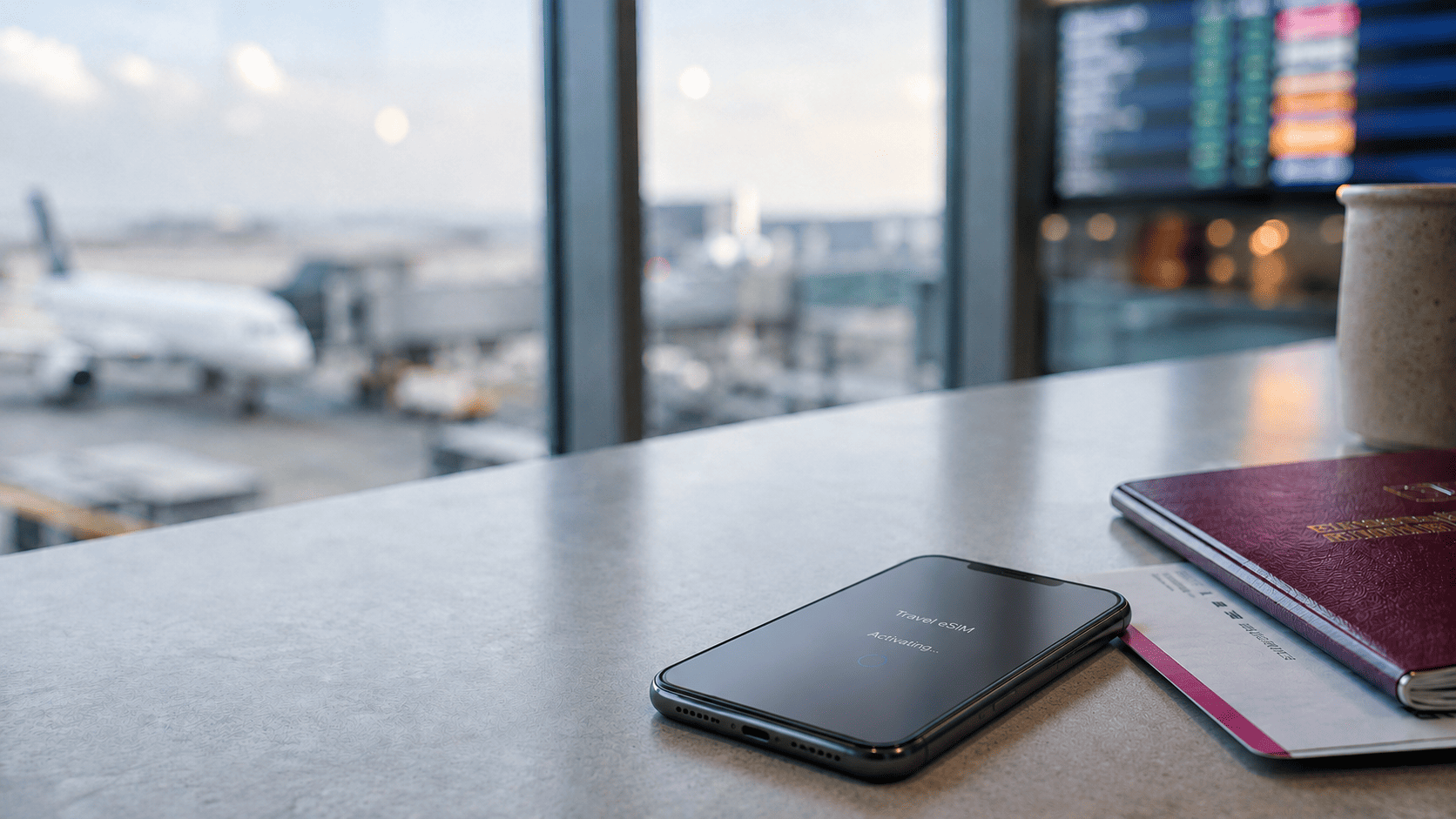
If your eSIM is stuck on Activating, do not delete it immediately. Under normal conditions, installing and activating an eSIM usually takes only a few minutes. However, some travel eSIMs cannot complete network activation until your phone reaches a supported network in the destination covered by the plan.
If the status remains unchanged after several minutes or after you arrive at your destination—keep the phone connected to stable Wi-Fi and check the plan’s activation instructions before making changes. A temporary connection problem, outdated software, a locked device or delayed provider setup can all prevent activation from finishing.
This guide explains how long eSIM activation should take, why it may get stuck and the safest fixes to try on iPhone and Android. It will also help you understand when waiting is normal and when it is time to contact your eSIM provider.
How Long Does an eSIM Take to Activate?
Most eSIM profiles download and install within a few seconds to a few minutes when the phone has a stable internet connection. The line may then need additional time to register with the carrier, so installation and network activation do not always finish at exactly the same moment.
For a travel eSIM installed before departure, an “Activating…” status may be normal until the device reaches the destination covered by the plan and connects to a supported local network. This is why an eSIM can appear installed but not fully active while you are still at home.
If you are already at your destination and the eSIM remains stuck on Activating for more than 3–5 minutes, activation is taking longer than expected. Restart the phone once and continue with the troubleshooting steps below. If you see “Unable to Activate eSIM” or “Activation Failed” instead, the setup did not complete and waiting alone is unlikely to fix it.
Why Is My eSIM Stuck on Activating?
An eSIM can remain stuck on Activating when the profile appears in your phone’s settings but the device has not completed registration with the provider or mobile network. The cause may be a temporary setup issue, a device restriction or simply the way a travel eSIM is designed to activate.
You Are Not Yet at the Covered Destination
Some travel eSIMs activate only after connecting to a supported local network. If you install one before departure, it may continue showing “Activating…” until you arrive. This does not necessarily mean the installation has failed, but you should confirm the activation policy included with your plan.
The Internet Connection Was Interrupted
Your phone needs an internet connection to download and verify the eSIM profile. If Wi-Fi disconnects or becomes unstable during setup, the profile may appear on the device without completing activation.
Your Phone Is Carrier-Locked or Not Fully Compatible
Having an eSIM menu does not always mean the phone can use every eSIM plan. A carrier lock, regional device restriction or lack of support for a required network can prevent activation. You can check whether your phone supports eSIM before attempting the setup again.
Your Software or Carrier Settings Are Outdated
Older software can interfere with eSIM provisioning or network registration. Installing available system and carrier settings updates, followed by a restart, may allow the activation to finish.
The Provider Has Not Finished Provisioning the eSIM
The eSIM profile must be linked to an active plan on the provider’s system. A pending order, temporary server delay or incomplete provisioning can leave the eSIM stuck even when your phone and internet connection are working correctly.
The Activation Code Is Invalid or Has Already Been Used
Some eSIM QR codes are assigned to one profile and can be installed only once. If the code was previously used on another device, entered incorrectly or associated with a deleted profile, you may see “Unable to Activate eSIM” or “Activation Failed.” In that situation, the provider may need to issue new activation details
How to Fix an eSIM Stuck on Activating
If your eSIM is not activating, follow these steps in order. Stop once the status changes, and do not remove the eSIM profile unless your provider specifically instructs you to do so.
- Confirm whether the plan should activate before arrival.
- Check the activation instructions provided with your travel eSIM. If the plan starts only after connecting to a supported network at the destination, leave it installed and check it again after you arrive.
- Connect to a stable internet connection.
- Use reliable Wi-Fi or a personal hotspot while the phone completes the setup. If the current connection is unstable, switch to another network before trying again.
- Turn Airplane Mode on and off.
- Enable Airplane Mode, wait about 30 seconds and then turn it off. This forces the phone to search for the network again and can restart a stalled activation process.
- Turn the eSIM line off and back on.
- Open your mobile network or SIM settings and confirm that the new eSIM line is enabled. If it is already on, switch the line off, wait briefly and enable it again. Turn off the line only—do not delete the profile.
- Restart your phone.
- A restart refreshes the device’s network services and often completes an eSIM activation that has stopped responding.
- Install available updates and check the carrier lock.
- Update your phone’s operating system and any available carrier settings. You should also confirm that the device is unlocked, since a carrier-locked phone may reject an eSIM from another provider.
- Ask the provider to verify the eSIM.
- If the status still does not change, contact the eSIM provider and ask them to confirm that the plan has been provisioned correctly. Have the error message, order details, device model, IMEI and EID available so the provider can identify the issue.
Important: Do not delete an eSIM simply because it remains on “Activating…”. Some profiles and QR codes can be installed only once. Turning the line off is reversible, but deleting it may require a replacement activation code from the provider
How to Fix an eSIM Stuck on Activating on iPhone
The following steps apply to iOS 26 and most earlier supported versions. Depending on your language or region, the relevant menu may be named Cellular, Mobile Data or Mobile Service.
- Connect the iPhone to stable Wi-Fi.
- Keep the connection active while completing the remaining steps.
- Refresh the network connection.
- Open Control Center, turn Airplane Mode on, wait about 30 seconds and turn it off again.
- Restart the eSIM line.
- Go to Settings → Cellular → select the eSIM. Make sure Turn On This Line is enabled. If it is already enabled, turn it off briefly and then switch it back on. Do not tap Delete eSIM.
- Restart the iPhone.
- After it turns back on, return to the Cellular settings and check whether the eSIM still shows “Activating…”.
- Check for a carrier settings update.
- Go to Settings → General → About. If an update is available, a prompt will appear. On the same page, check Carrier Lock. It should display No SIM restrictions if the iPhone is unlocked.
- Update iOS.
- Go to Settings → General → Software Update and install any available update before trying activation again.
Apple recommends the same core sequence—refreshing Airplane Mode, restarting the line and rebooting the device—when an eSIM cannot be set up on an iPhone. If the line is still unable to activate after these checks, contact the eSIM provider and ask them to verify the profile using your iPhone’s IMEI and EID.
How to Fix an eSIM Stuck on Activating on Android
Android menu names vary by manufacturer, but the troubleshooting process is similar on Google Pixel, Samsung Galaxy and other eSIM-compatible phones.
- Connect the phone to stable Wi-Fi.
- Keep the internet connection active while the device verifies and downloads the eSIM profile.
- Refresh the network connection.
- Turn Airplane Mode on, wait about 30 seconds and then turn it off.
- Check that the eSIM line is enabled.
- On Google Pixel, go to Settings → Network & internet → SIMs, select the eSIM and make sure Use SIM is enabled.
- On Samsung Galaxy, go to Settings → Connections → SIM manager and enable the switch next to the eSIM.
- If the line is already enabled, turn it off briefly and then switch it back on. Do not remove the eSIM.
- Restart the phone.
- Once it turns back on, return to the SIM settings and check whether the status has changed.
- Install available software updates.
- On Google Pixel, go to Settings → System → Software updates.
- On Samsung Galaxy, go to Settings → Software update → Download and install.
- Confirm that the phone is unlocked.
- The exact carrier-lock menu differs between Android brands and may not be visible on every device. If you are unsure, contact the carrier that originally sold the phone.
Google explains that Pixel users can manage a new profile under Network & internet → SIMs → Add SIM, while Samsung uses Connections → SIM manager. If the eSIM remains stuck after the steps above, contact the provider rather than deleting or repeatedly scanning the same QR code.
What Do “Unable to Activate eSIM” and “Activation Failed” Mean?
These messages describe different stages of the setup process. An eSIM showing “Activating…” may still be trying to complete registration, while an error message usually means the current activation attempt has stopped.
eSIM Shows “Activating…”
The profile has usually been added to the phone, but activation or network registration is still in progress. Waiting may be normal if you installed a travel eSIM before arriving at the destination covered by the plan. If you are already there and the status does not change after several minutes, begin the troubleshooting steps above.
“Unable to Activate eSIM”
This message means the phone could not complete the setup. Common reasons include an unstable internet connection, a carrier-locked device, unsupported eSIM details or a profile that has not been provisioned correctly. Retry only after checking the connection, device compatibility and provider instructions.
“eSIM Activation Failed”
An activation failed message means the attempt has ended rather than remaining in progress. Waiting alone is unlikely to change it. The provider may need to verify the activation code, confirm the plan’s status or issue new installation details.
Do not repeatedly scan the same QR code or delete a partially installed profile while testing. If the eSIM appears active but the phone shows “No Service” or mobile data does not work, activation may already be complete and the issue may instead involve network settings or whether data roaming should be on or off.
Should You Delete an eSIM Stuck on Activating?
No. Deleting the eSIM should not be your first troubleshooting step. Removing it only erases the downloaded profile from the phone; it does not correct a carrier lock, internet problem or provider-side provisioning delay.
Some activation codes and QR codes can be used only once. If you delete the profile, the same code may no longer work and you may need the provider to issue a replacement.
Delete the eSIM only when the provider confirms that the existing profile cannot be repaired and either verifies that the original code can be reused or gives you new installation details.
When Should You Contact the eSIM Provider?
Contact the provider when:
- The eSIM remains on “Activating…” after you arrive at the covered destination and complete the safe troubleshooting steps.
- “Unable to Activate eSIM” or “Activation Failed” keeps returning.
- The QR code is reported as invalid or already used.
- The profile was previously installed, deleted or transferred to another phone.
- The plan does not appear active in your account.
The provider can verify whether the eSIM has been provisioned correctly, check if the profile is linked to your device and issue new activation details when necessary.
Frequently Asked Questions About eSIM Activation
How Long Does an eSIM Take to Activate?
Most eSIMs complete installation and activation within a few seconds to a few minutes. If you are already at the covered destination and it remains on “Activating…” for more than 3–5 minutes, begin the troubleshooting steps in this guide.
Why Is My Travel eSIM Not Activating Before Departure?
Some travel eSIMs cannot finish network activation until they connect to a supported carrier at the covered destination. Leave the profile installed and check the plan’s activation instructions before assuming that it has failed.
Does an eSIM Need Wi-Fi to Activate?
An eSIM usually needs a stable internet connection to download and verify the profile. Reliable Wi-Fi or a personal hotspot is recommended during installation and troubleshooting.
Can I Restart My Phone While the eSIM Is Activating?
Yes. Restarting the phone does not delete an installed eSIM profile and can refresh the network services needed to complete activation.
Should I Delete an eSIM That Is Stuck on Activating?
No, not unless the provider specifically instructs you to delete it. Removing the profile may prevent you from using the same activation code again.
Can I Reuse an eSIM QR Code?
It depends on the provider, but many eSIM QR codes are linked to one profile or installation. Ask the provider to confirm whether the code can be reused before deleting or reinstalling the eSIM.