
What Does Airplane Mode Do? Wi-Fi, Calls & Roaming Explained
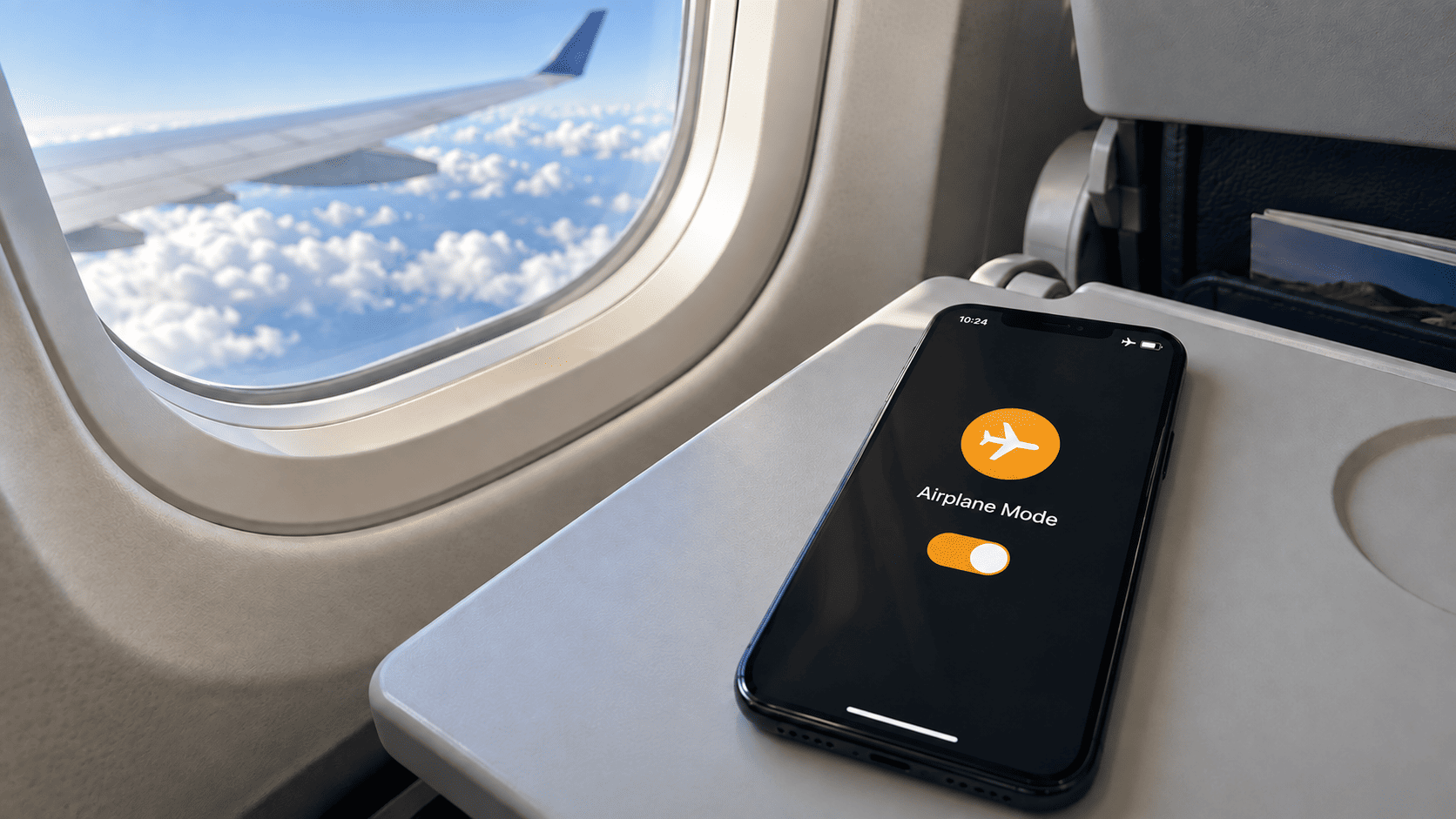
Airplane mode turns off your phone’s cellular connection, stopping mobile data and calls and texts over the mobile network. Wi-Fi and Bluetooth can still work when enabled, so you can use messaging apps over an internet-connected Wi-Fi network or listen through wireless headphones without turning airplane mode off.
For travelers, understanding these settings helps answer a bigger question: how do you stay connected without unexpected roaming charges? This VIA eSIM guide explains what airplane mode switches off, when calls and messages can still reach you, and which settings to check before your flight and after landing, including how to get your travel eSIM connected.
What Is Airplane Mode, and What Does It Turn Off?
Airplane mode, also called flight mode, disconnects your phone from cellular networks while keeping the device switched on. It affects the mobile connection for both physical SIMs and eSIMs.
Here is what happens to each connection:
- Mobile data: Internet access through your SIM or eSIM stops.
- Cellular calls and texts: Your phone cannot make or receive calls or exchange texts through the mobile network. Some calling and messaging services can still work over Wi-Fi.
- Wi-Fi: It may switch off when you enable airplane mode, but you can turn it back on separately and connect to a Wi-Fi network.
- Bluetooth: It can remain active or be switched back on, allowing you to use wireless headphones and other accessories.
The exact behavior depends on your phone and saved settings. Apple explains that Bluetooth stays on by default on iPhone, but the device remembers if you turn it off while airplane mode is active. On supported Android phones, Wi-Fi and Bluetooth can also remember your previous choices, as described in Google’s guidance.
Your phone’s offline features, including the camera, alarms and downloaded music, remain available.
Can You Use Wi-Fi and Bluetooth in Airplane Mode?
Yes. You can connect to Wi-Fi and use Bluetooth while airplane mode stays on. Wi-Fi provides internet access without using your SIM or eSIM’s mobile data, while Bluetooth connects accessories such as wireless headphones.
To connect to Wi-Fi in airplane mode:
- Enable airplane mode through Control Center on iPhone or Quick Settings on Android.
- Turn Wi-Fi on while leaving airplane mode enabled.
- Select a Wi-Fi network and enter its password or complete any sign-in steps.
If you want to use Bluetooth headphones, check that Bluetooth is enabled and your headphones are connected. You can listen to downloaded music without internet access. Streaming music requires an internet connection and a network that allows it.
During a flight, follow the airline’s instructions for wireless connections. If onboard Wi-Fi is available, the service may include free access, paid packages or messaging only. This connection is separate from the mobile data provided by your travel eSIM.
Can You Make or Receive Calls in Airplane Mode?
Regular calls over the cellular network do not work in airplane mode. You can still make or receive calls over Wi-Fi if your phone, calling service and Wi-Fi network support them.
There are two ways this can work:
- Wi-Fi Calling through your carrier: This feature lets you use your existing phone number over Wi-Fi. Your phone and carrier must support it, and it needs to be enabled for your line. On iPhone, Apple’s Wi-Fi Calling instructions explain how to set it up.
- Calls through apps: Services such as WhatsApp and FaceTime can handle voice or video calls over Wi-Fi. These calls use the app’s service and do not require your carrier’s Wi-Fi Calling feature. The app must be available where you are, and the network must allow calls.
Carrier Wi-Fi Calling can still involve charges. The cost depends on your plan and the number you call, particularly when calling internationally. For example, Verizon’s billing guidance lists situations where international charges apply.
During a flight, follow your airline’s rules even if your phone supports internet calls. Delta, for example, prohibits voice and video calls during flight, including calls over Wi-Fi.
Can You Receive Texts in Airplane Mode?
Yes, some messages can arrive in airplane mode when you have an internet connection over Wi-Fi. Whether you receive them depends on the type of message and the services enabled on your phone.
- iMessage and messaging apps: Services such as WhatsApp and iMessage can send and receive messages over Wi-Fi. They need to be set up and available on the network you are using.
- RCS messages: RCS can also work over Wi-Fi when enabled and supported by your device and messaging service. In Google Messages, the RCS status should show “Connected,” as explained in Google’s setup guide.
- Standard SMS: These cannot arrive through the cellular network while airplane mode is on. Some carriers, including Verizon, support texts over Wi-Fi Calling on compatible phones. Availability depends on your carrier, settings and Wi-Fi network.
This matters if you need a bank or login code sent to your regular phone number. Being able to receive a WhatsApp message does not confirm that SMS verification codes will arrive too.
A data-only travel eSIM does not include its own traditional SMS service. If you need both mobile data and regular texts while traveling, our guide to eSIMs with a phone number explains how the different plans work.
Does Airplane Mode Stop Roaming Charges?
Airplane mode prevents new cellular roaming usage while it remains enabled. Your primary SIM and travel eSIM are disconnected from mobile networks, so they cannot use roaming data or handle regular calls and texts through those networks.
Charges incurred before you enabled airplane mode still apply. If you reconnect to Wi-Fi, there may also be separate costs for Wi-Fi access or carrier Wi-Fi Calling. For example, Verizon’s Wi-Fi Calling guidance explains that certain international calls remain chargeable.
Airplane Mode vs. Data Roaming Off
These settings control different parts of your connection.
Airplane mode disconnects all mobile lines from cellular service. You can use it when you want to stay off mobile networks and connect through Wi-Fi instead.
Turning Data Roaming off restricts roaming mobile data on the affected line. Your phone may still connect to a foreign mobile network for calls and SMS, which remain subject to your carrier’s charges. Apple’s travel eSIM guidance also notes that keeping your home line active alongside a travel eSIM can still result in roaming fees.
To use your travel eSIM’s mobile data after landing, turn airplane mode off and follow the plan’s connection instructions. Many travel eSIMs require Data Roaming to be enabled on the travel line so they can connect to supported partner networks.
VIA eSIM’s guide to data roaming settings for travel eSIMs explains how to configure this while preventing your primary SIM from using roaming data.
What Happens to Your Travel eSIM in Airplane Mode?
Your travel eSIM stays installed when you enable airplane mode. The setting turns off your phone’s cellular connection, so the eSIM cannot provide mobile data while airplane mode remains on. You can use the same installed profile afterward without scanning its QR code again.
If you connect to Wi-Fi during the flight, that connection does not consume your travel eSIM’s mobile data allowance.
Your package’s validity period is a separate matter. A plan with a fixed expiry date can still expire while your phone is offline, even if you have unused data remaining. Check when your specific package starts and expires before installing or activating it ahead of your trip.
After landing, your existing VIA eSIM can reconnect once airplane mode is off, the line is enabled and the required data settings are in place. The package must also have remaining validity and data, with coverage for your destination. This is why checking the countries included in your local, regional or global eSIM plan matters, especially when your trip includes a stopover.
VIA eSIM Flight and Arrival Checklist
Prepare your SIM settings before departure so you can connect at your destination without having to work through every option at the airport.
Before Your Flight
- Check your package’s activation rules. Confirm when its validity starts and whether it covers your destination and any stopovers.
- Follow the installation instructions while you have reliable internet access. Label your lines clearly, for example, “Home” and “VIA eSIM.”
- Decide whether you need your regular number. If you do not need traditional calls or SMS, switch off your home line before traveling. If you keep it active, check your carrier’s roaming charges and turn off its Data Roaming where separate controls are available.
- Disable automatic data switching if your phone offers it. On iPhone, this setting is called Allow Cellular Data Switching.
- Save essential travel information offline. Keep your boarding pass, accommodation address and installation instructions accessible without internet.
During the Flight
- Enable airplane mode when instructed by the crew.
- Turn Wi-Fi or Bluetooth on separately if needed and permitted. Follow the airline’s rules for onboard internet use and calling.
After Landing
- Turn airplane mode off when cellular use is permitted.
- Enable your VIA eSIM line and select it as the line for mobile data.
- Enable Data Roaming if your package requires it. Keep your home line’s roaming restrictions in place and confirm that automatic data switching remains off.
- Allow the phone to connect to a supported mobile network.
- Test the connection with Wi-Fi temporarily off. Open a new webpage, then check your SIM settings and available usage counters to confirm that VIA eSIM is providing the mobile data.
Menu names and roaming controls vary between phones. Our iPhone and Android roaming setup guide covers the settings for each device, including phones that use a single Data Roaming switch.
Does Airplane Mode Save Battery?
Yes, airplane mode can help save battery, especially where cellular reception is weak or unavailable. Your phone uses power searching for a mobile network, and airplane mode stops that activity. Apple recommends using airplane mode as one way to preserve battery in areas with poor coverage.
The amount saved depends on your phone and how you use it. Your screen, apps and any Wi-Fi or Bluetooth connections you keep active still consume power. Watching videos or playing games can therefore continue to drain the battery while airplane mode is on.
For a long flight, lower your screen brightness to a comfortable level and enable your phone’s battery-saving mode. Downloading music or videos before departure also lets you enjoy them without keeping an internet connection active.
Mobile Data Not Working After Turning Off Airplane Mode?
If mobile data does not return after you turn airplane mode off, work through these checks:
- Confirm the correct data line. Make sure the SIM or travel eSIM you want to use is enabled and selected for mobile data.
- Check the roaming setting. If your travel eSIM requires Data Roaming, enable it for that line according to the package instructions. Keep your home line’s roaming restrictions in place.
- Check your package. Confirm that it is active, has data remaining and covers your current location.
- Refresh the cellular connection. Turn airplane mode on briefly, then off again and allow the phone to reconnect. For iPhone, Apple recommends about 30 seconds when troubleshooting roaming connectivity.
- Restart your phone if it still cannot connect.
For any required APN settings or specific partner networks, follow the instructions supplied with your package. A signal indicator alone does not confirm that mobile internet is working, so test by opening a new webpage with Wi-Fi temporarily switched off.
If your VIA eSIM still will not connect, contact VIA eSIM support with your phone model, destination and the status shown on screen. Keep the eSIM profile installed while support helps you troubleshoot the connection.
Frequently Asked Questions About Airplane Mode
Will My Alarm Go Off in Airplane Mode?
Yes. Alarms set in your phone’s built-in Clock app can still ring in airplane mode because they do not need a cellular or Wi-Fi connection. Keep your phone powered on, choose an alarm sound available on the device and check the alarm volume before relying on it for an early flight.
Can I Use Google Maps in Airplane Mode?
Yes. With an internet-connected Wi-Fi network, you can use Google Maps online. Without internet access, you need maps downloaded in advance, where that feature is available.
Google Maps supports offline driving directions when the entire route is within the downloaded area. Offline walking, cycling and public transport directions are unavailable, along with live traffic information.
Is Airplane Mode the Same as Do Not Disturb?
No. Do Not Disturb controls interruptions from calls and notifications while leaving network connections available. Airplane mode turns off the cellular connection.
Turning on Do Not Disturb alone does not prevent roaming data use or the associated charges. You still need to manage your mobile data, roaming and SIM settings separately.
Plan Your Connection Before You Fly
Before departure, check your travel plan’s coverage, activation instructions and validity period. Keep the setup instructions available offline so you can access them even before your mobile data connects.
You can explore the VIA eSIM plans for your destination while preparing for your trip. After landing, use the flight and arrival checklist above to confirm that your travel eSIM is selected for mobile data and that the roaming settings match your package’s instructions.